How to check your Yahoo!Xtra Spam folder
Step by step instructions on how to check your Yahoo!Xtra Spam folder for messages that are not Spam, and how to help prevent email from being moved to the Spam folder.
Log in Yahoo!Xtra
- Login to Xtra Webmail here: http://xtra.yahoo.com/
If you have not logged in to Xtra Webmail for a while, you may have to set up the Yahoo!Xtra account, which will take a few minutes.
Mark Email as Not Spam
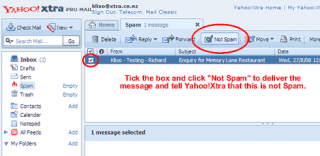
Figure 1 - Yahoo!Xtra Webmail Spam Folder
- Click on the Spam folder
- Tick each email that is not Spam and click "Not Spam". This will move the emails to the Inbox folder.
Add Sender to Contacts
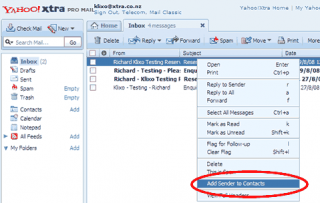
Figure 2 - Yahoo!Xtra Webmail "Add Sender to Contacts" function
- Click on the Inbox folder
- Right-click on an email that had been incorrrectly moved to the Spam folder
- Click "Add Sender to Contacts"
- Click Save